
Purchase Orders allow districts to formally authorize the procurement of supplies, equipment, and services from vendors. When integrated with the Advanced Workflow, purchase orders follow a configurable, rule-based approval process before they can be finalized and issued.
Purchase Order - Advanced Workflow Features
-
Integrated approval process with the purchasing module:
The Advanced Workflow connects directly to the purchasing module, routing purchase orders through approval levels automatically based on configured rules and conditions. -
Unlimited approver levels:
The Advanced Workflow supports an effectively unlimited number of approval levels, defined visually through the Workflow Designer. The legacy workflow is constrained by its approval group configuration (typically limited to five levels). -
Conditional approvals based on purchase order parameters:
Workflow Groups use rule definitions that can evaluate conditions against purchase order fields (from purcomm and related tables), including purchase number, line number, and calculated values. Rules support multiple operators, value ranges, and complex logical grouping (And/Or). -
Distinct workflows per line item:
Each purchase order line can follow its own approval path. The workflow engine evaluates rules and filters groups independently for each line, allowing different lines to route to different approvers based on their specific attributes. -
Flexible approval level responsibility:
Each approval level can be configured to require approval from at least one user from each mapped role (JOE — "Just One from Each"), or to require approval from any one applicable role to complete the level. -
Consolidated email notifications for approvers to reduce clutter:
When enabled, the system consolidates workflow email notifications rather than sending individual emails to notify approvers of each pending approval request, reducing inbox volume. -
Configurable notifications at every stage:
Each approval activity supports notifications for approvers and alternate approvers, reminders (with configurable intervals), denials, and actions requiring correction, each with selectable email templates. Alternate approver notifications and reminder frequencies are independently configurable. -
Budget exceed alerts shown to approvers for informed decision-making:
The approval list and detail pages display a budget-exceeded flag for purchase orders that would cause an account to exceed budget, allowing approvers to make informed decisions before approving. -
Purchase orders can be approved, denied, or marked for correction:
Approvers can take actions of Approve, Deny, Needs Correction, or Delegate at both the header and line levels. -
Delegation support:
Approvers can delegate their approval responsibility to other users. Delegation is managed through the following pages, and delegated actions are tracked in the audit trail:-
Workflow Approvals page
-
Workflow Approval Delegations page
The Workflow Approval Delegations page allows Workflow Admins to set up delegations for other approvers.
-
-
Approval history and pending approvers are visible via the Approval Status button:
Requesters and authorized users can view the full approval history and see the approvers whose approval the request is pending with via the Approval Status action (Ctrl+Shift+S). The history displays per-line approval status when the Advanced Workflow is enabled. -
Approvers can see actions taken by prior approvers:
The workflow audit trail dialog shows all prior approval actions, including the approver, action taken, action date, and any delegation context. -
Post-approval notifications can be sent to non-approvers:
A Post-Approval Notification Role can be assigned to an email template at the final stage of the workflow to notify designated users by email after the purchase order is fully approved, without requiring them to take an approval action. -
Tracking and recovery for failed workflows:
The system tracks workflow failures at both the Processing and Post Approval stages and can retry failed requests. Expired requests cannot be retried, while requests placed on hold have no time-based expiration.
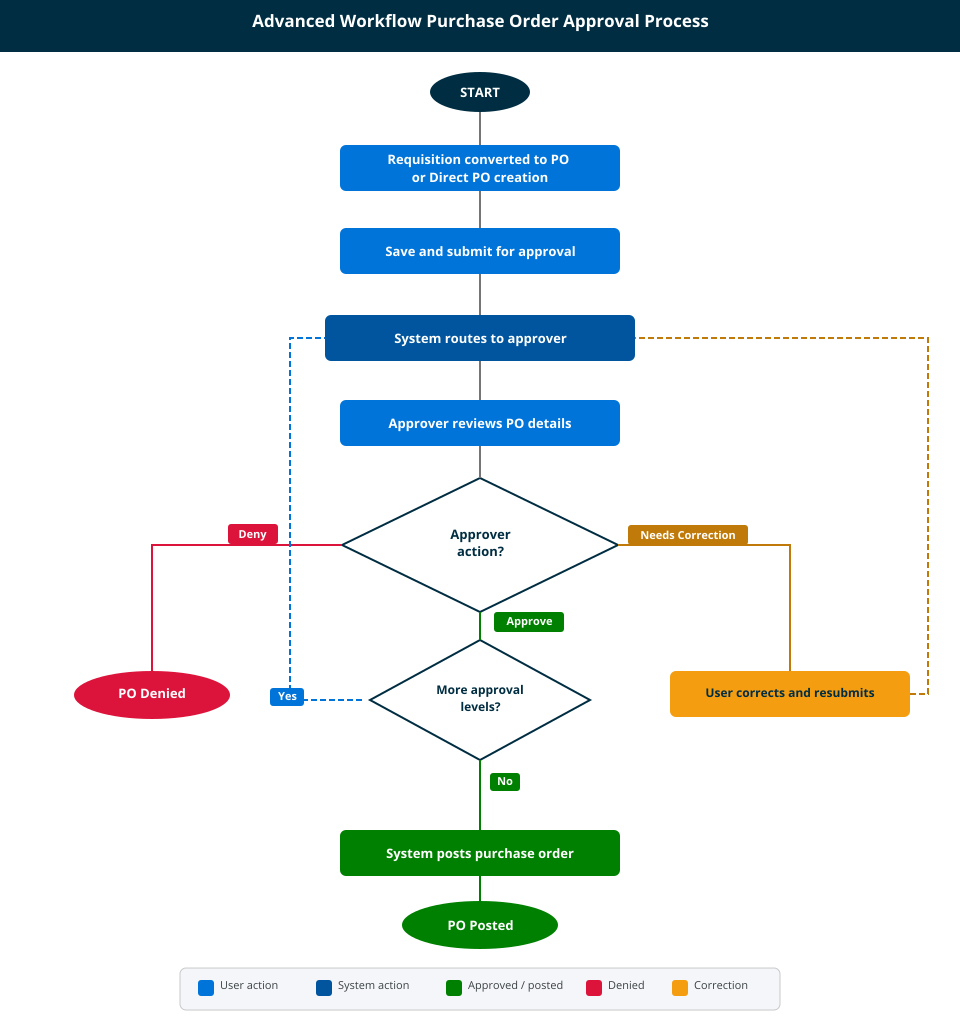
Advanced Workflow Purchase Order Approval Process
The following diagram illustrates the approval lifecycle for a Purchase Order workflow request.
Flow description
-
The user creates or edits a purchase order and submits it for approval.
-
The system evaluates the configured Group criteria and routes the PO to the appropriate approver.
-
The approver reviews the PO details (PO number, vendor, amount, charge accounts) and takes one of three actions:
-
Approve: The PO advances to the next approval level (if additional levels exist) or proceeds to posting.
-
Deny: The PO is denied. The workflow ends without posting the PO.
-
Needs Correction: The PO is returned to the user. The user edits the PO and resubmits it, which re-enters the routing step.
-
-
After all approval levels are complete, the system automatically posts the purchase order.
Purchase Order - Advanced Workflow Configuration
Perform the following steps in sequence to configure Advanced Workflow for Purchase Orders:
Print and use the Checklist sheet to track your progress.